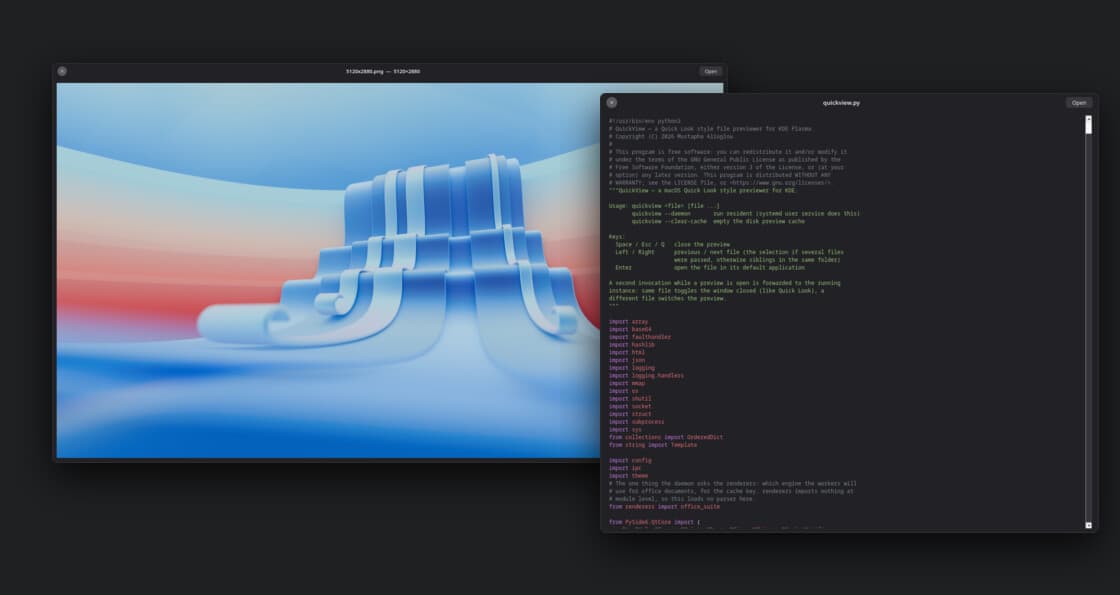
If you have ever used a Mac, you know the move. You select a file in Finder, press Space, and the file opens right there in a floating panel. You look at it, press Space again, and it's gone. No app launches, nothing gets a window in your taskbar, and you never lose your place in the folder.
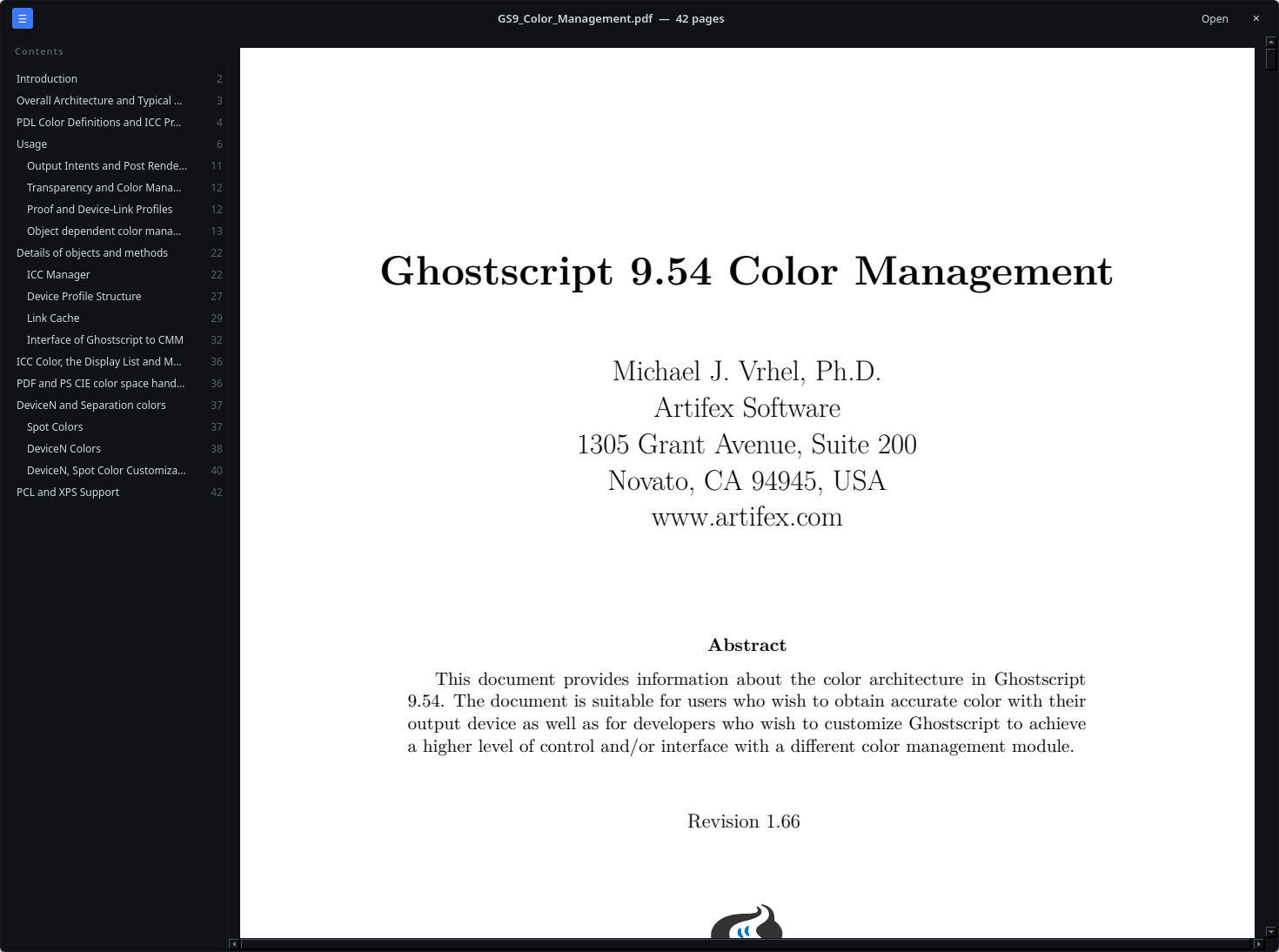
I use KDE Plasma, and this is the one thing I kept missing. Dolphin has a preview pane and tooltips, but neither one lets me read page 12 of a PDF or check what's inside a zip before I extract it. So I built it. It is called QuickView: select a file in Dolphin, press Space, and a dark preview panel appears. Press Space (or Esc) again and it goes away.
Fast enough to feel like a key press
A previewer only works if it is instant. If you have to wait a second, you might as well open the file.
The trouble is that QuickView is written in Python with Qt, and starting Qt from nothing takes about a second. So QuickView keeps a small daemon running in the background with Qt already loaded. Pressing Space runs a tiny client, written in Rust, that does nothing except pass the file path over a socket. That takes about 4 ms, and the panel is on screen about 20 ms after the key press.
Previews are also cached, in memory and on disk, so opening a file again is close to free. While you look at one image, the next ones in the folder are already being decoded in the background.
What it can preview
Pretty much everything I come across in a normal week:
| Type | How |
|---|---|
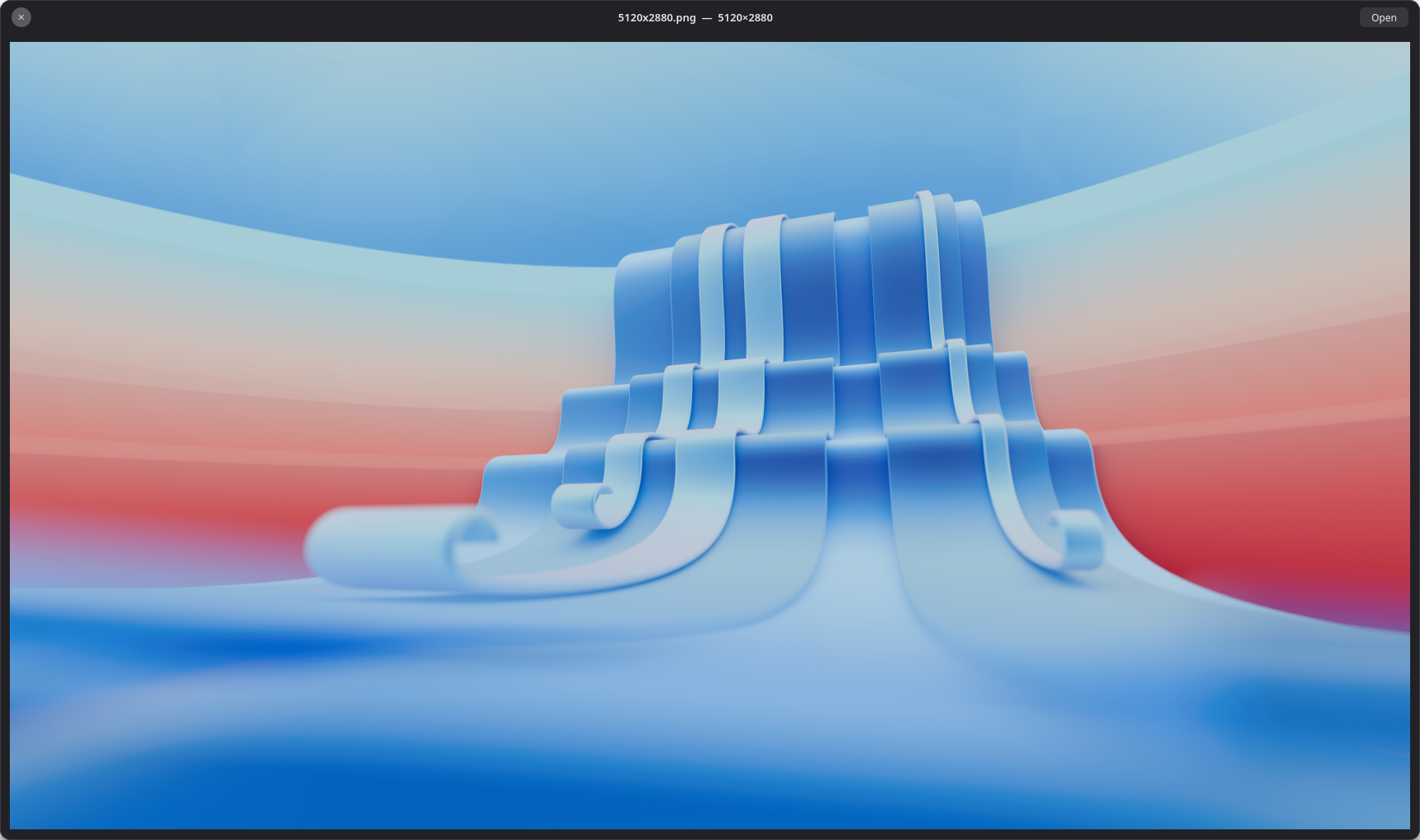
| Images (PNG, JPG, WebP, SVG, …) | Scaled to fit, with the dimensions in the titlebar |
| Photoshop, Krita, Illustrator | The flattened image the file already stores, no layers parsed |
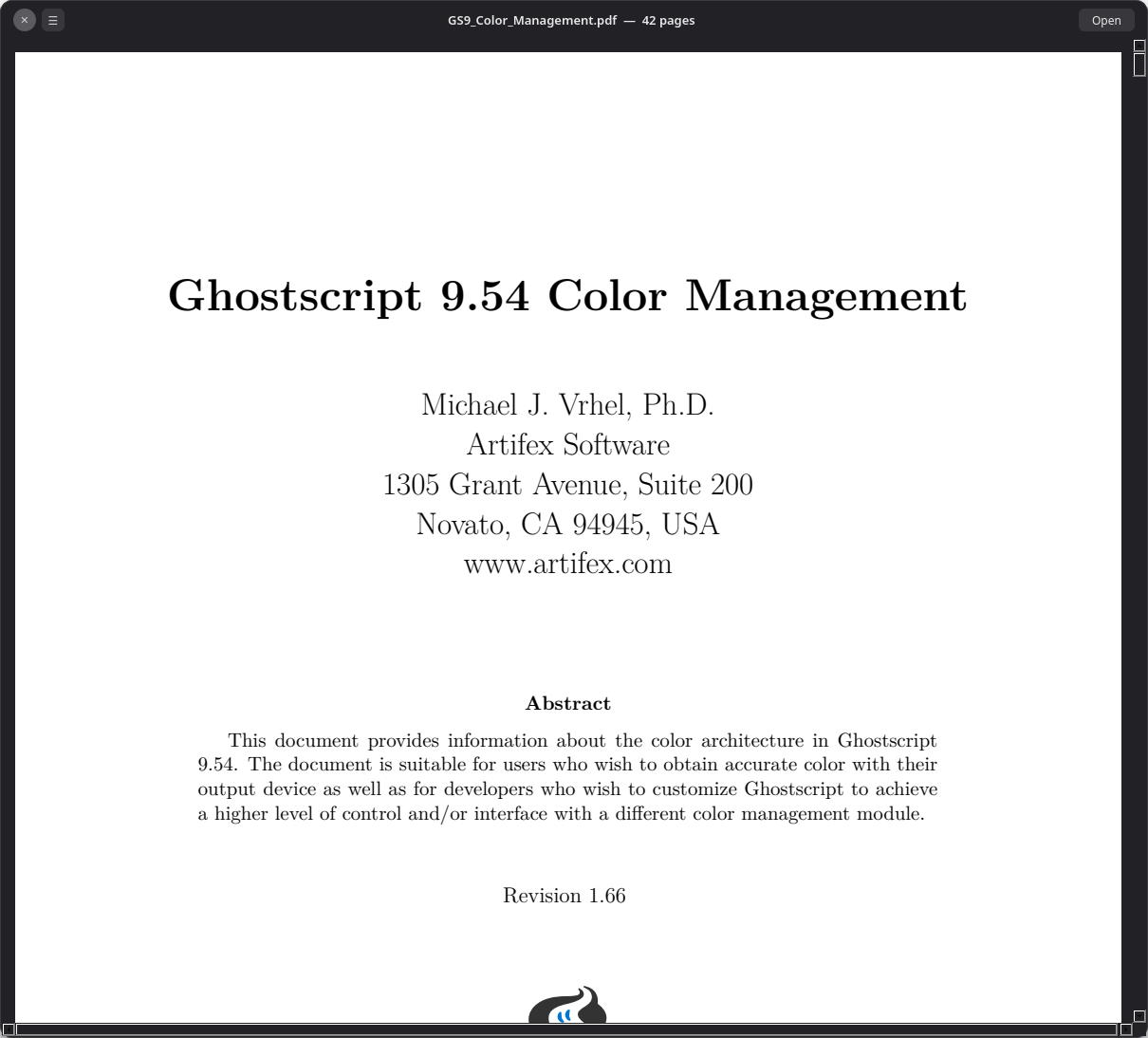
| PDFs | Scrollable pages, Ctrl+F search and a bookmarks sidebar |
| EPUB books | Laid out as real pages, with a chapter sidebar and search |
| Markdown | Rendered pages, with a button to flip to the source |
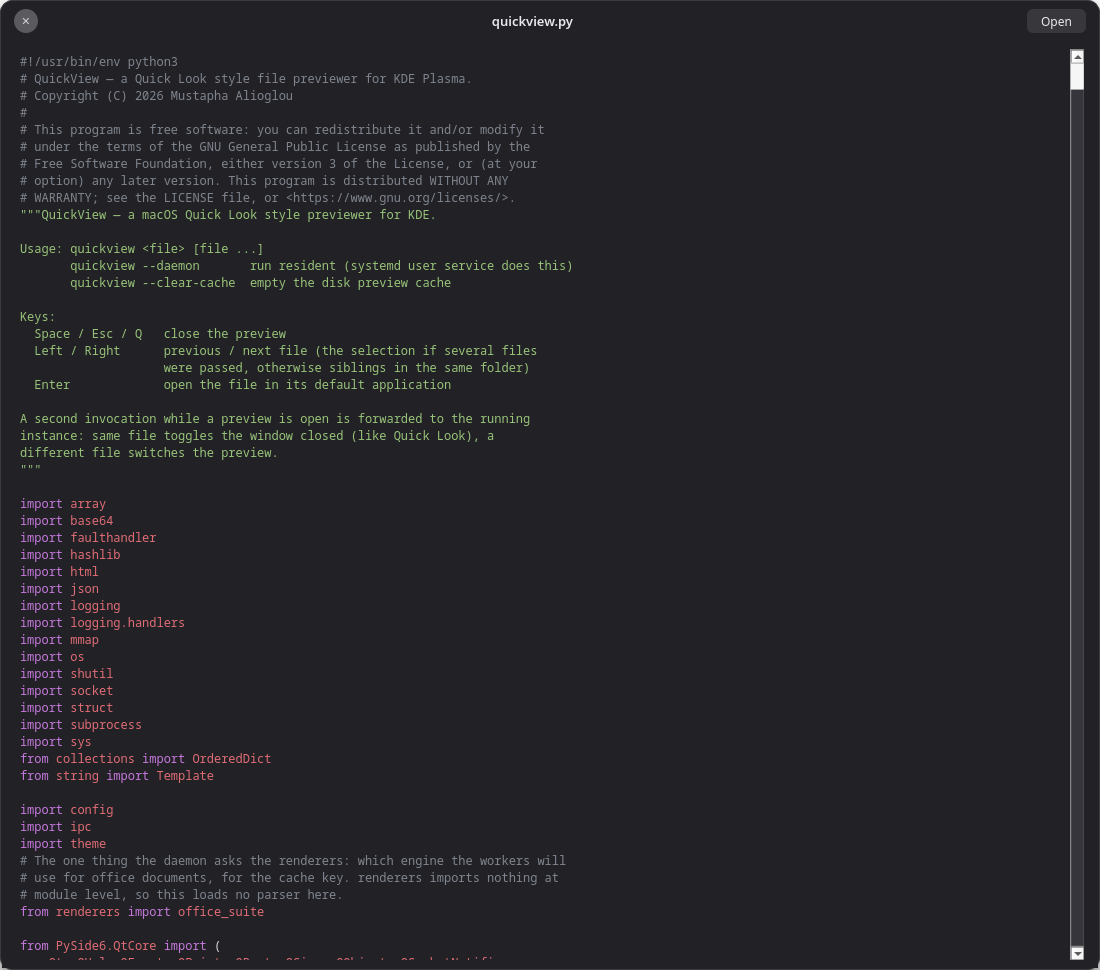
| Code and text | Syntax highlighted |
| Word, LibreOffice, PowerPoint | Laid out as pages, like a PDF |
| Spreadsheets | A real grid with a tab per sheet |
| Video and audio | Plays inline with a seek bar |
| Archives (zip, rar, 7z, tar…) | A listing of what's inside, nothing extracted |
| HTML | Rendered with JavaScript off and the network blocked |
| Everything else | A card with the icon, type, size and date |
That last row matters more than it looks. Space is never a dead key. Even a file QuickView can't open gets a card that tells you what it is.
You can also select several files and press Space, and then ← and → step through them,
with the titlebar showing 2/5 like Quick Look does. With a single file the arrows walk the folder
instead. Enter opens the file in its real app when the preview is not enough.
The details I enjoyed the most
Some of the formats turned out to be much more fun than I expected.
Books are read, not listed. An EPUB is basically a zip of web pages with a reading order, which is close enough to what Qt already knows how to lay out. So QuickView lays the book out as pages, each chapter starts on a new page, and the book's own table of contents becomes a sidebar with page numbers. The page colours are a setting too, so you can read in sepia or gruvbox if you like.
Ctrl+F works in PDFs and books. Matches are highlighted right on the page, Enter jumps to the next one, and phrases work even when they wrap onto the next line.
Spreadsheets look like spreadsheets. An .xlsx stores every number bare, with a separate format
code that says how to show it. If you ignore the format codes, €1,234.50 shows up as 1234.5 and every
date shows up as a five digit number. QuickView reads the codes and applies them, so you see currency,
percentages, thousands separators and negatives in brackets, the way the person who made the workbook
saw them.
Archives are never extracted. QuickView only reads the list of files, so an archive that expands to a terabyte costs nothing to look at.
Shebangs count. Syntax highlighting goes by the file extension, but a script like ~/bin/deploy
has none. In that case QuickView reads the #! line, so #!/usr/bin/env python3 is highlighted as
Python anyway.
Every file is opened inside a sandbox
This is the part I care about the most, and it is the part you hopefully never notice.
A previewer is a scary piece of software when you think about it. Its whole job is to open files you just downloaded and haven't looked at yet, and image, PDF and video decoders have a long history of security bugs. One bad file could do anything your user account can do.
So QuickView never parses a file in the main program. Every image, PDF, book, office document, spreadsheet, video and even the syntax highlighter runs inside a bubblewrap sandbox with:
- no network
- no permission to write anything
- no access to your files at all
That last one is the important bit. The file is handed to the sandbox already opened, as a file descriptor, so the code inside never needs a path and has nothing else to look at. If a malicious file manages to crash or take over the decoder, all it gets is a throwaway process that can't read your home folder and can't phone home. Then it exits, because each sandboxed worker handles exactly one file.
You would expect all this to make it slower, but it actually made it faster. Entering the sandbox costs about 3 ms. What used to be slow was starting Qt for every preview, so now QuickView starts a spare worker before you need it and parks it. Opening a one page PDF went from 583 ms to about 120 ms, and a cached preview takes around 2 ms.
It can look like Plasma, too
By default the panel is a Quick Look impression: dark, rounded, with the close button on the left. That's what I set out to build and it stays the default. But if you'd rather it fit in with the rest of your desktop, one line in the config switches to a Breeze theme that follows your Plasma colour scheme, accent colour included, and moves the close button to the right.
# ~/.config/quickview/quickview.conf
[appearance]
panel_theme = breeze
Installing it
You need KDE Plasma with Dolphin, Python 3.10 or newer and bubblewrap. The sandbox isn't optional,
so QuickView won't run without it.
git clone https://github.com/MustaphaAlioglou/QuickView.git
cd QuickView
./install.sh
The installer builds its own virtualenv and never touches your system packages. It uses your distro's
PySide6 when there is one, adds the Dolphin menu entry and starts the daemon as a systemd user service.
If rustc is installed it also builds the fast client. Without it, a Python client does the same job
about 15 ms slower. ./uninstall.sh removes all of it again.
The last step is binding Space in Dolphin, once: Menu → Configure → Configure Keyboard Shortcuts… → search "Quick Look" → Custom → Space
If you want slide decks and old .doc, .xls and .ppt files too, install LibreOffice. QuickView
then uses it, still inside the sandbox, to lay those files out exactly as they look in an office suite.
Is it free?
Yes, it's licensed under GPL-3.0-or-later, and the code is on GitHub. If you find a file it previews badly, open an issue and attach the file if you can. That is the fastest way for me to fix it.
Thanks for reading, and enjoy pressing Space.